If you want people to share your Facebook post, the most important setting to check is the post’s audience.
For a post on your personal Facebook profile, choosing Public gives it the broadest visibility and allows people beyond your friends to see it. Facebook’s audience selector lets you choose who can see a post when you create it.
The exact wording or location of some buttons can vary slightly depending on whether you’re using the Facebook app, mobile browser, or desktop version, but the basic process is straightforward.
The Quick Answer
To make a Facebook post shareable:
- Create a new post or open an existing post.
- Find the audience selector beneath your name or in the post’s menu.
- Choose Public.
- Save or confirm the change.
- Check the post to make sure the audience is shown as Public.
For a new post, Facebook provides the audience selector before you publish it. For an existing post, you can generally open the post’s options and change its audience.
If your post is limited to Friends, Only Me, or another restricted audience, people may not have the same ability to share it broadly.
How to Make a New Facebook Post Shareable
The easiest time to make a post shareable is when you’re creating it.
On the Facebook Mobile App
Follow these steps:
- Open the Facebook app.
- Tap What’s on your mind? to start a post.
- Write your post and add any photos, videos, or other content you want to publish.
- Look for the audience option shown near your name.
- Tap the current audience setting.
- Select Public.
- Return to the post and tap Post.
Facebook’s Help Center confirms that the audience selector appears when creating a post and allows you to choose who can see it.
Once Public is selected, the post has the broadest audience option available for a normal profile post.
On Desktop
The process is similar if you’re using Facebook on a computer.
- Go to Facebook and open the post composer.
- Click What’s on your mind?
- Write your post or add your photo or video.
- Find the audience selector below your name.
- Click the current audience.
- Select Public.
- Publish the post.
The important part isn’t the type of device you’re using. It’s the audience setting attached to the post.
How to Make an Existing Facebook Post Shareable
You don’t necessarily need to delete an old post and create a new one.
If you’ve already published a post, open the post and look for its three-dot menu or other post options. From there, look for an option related to the audience or privacy.
If Facebook gives you the option to change the audience, select Public and save the change.
Facebook allows users to manage the audience for things they share, and privacy settings can be accessed through Settings & privacy and the Audience and visibility section.
After changing the audience, return to the post and check its audience indicator.
Why Is the Share Button Missing?
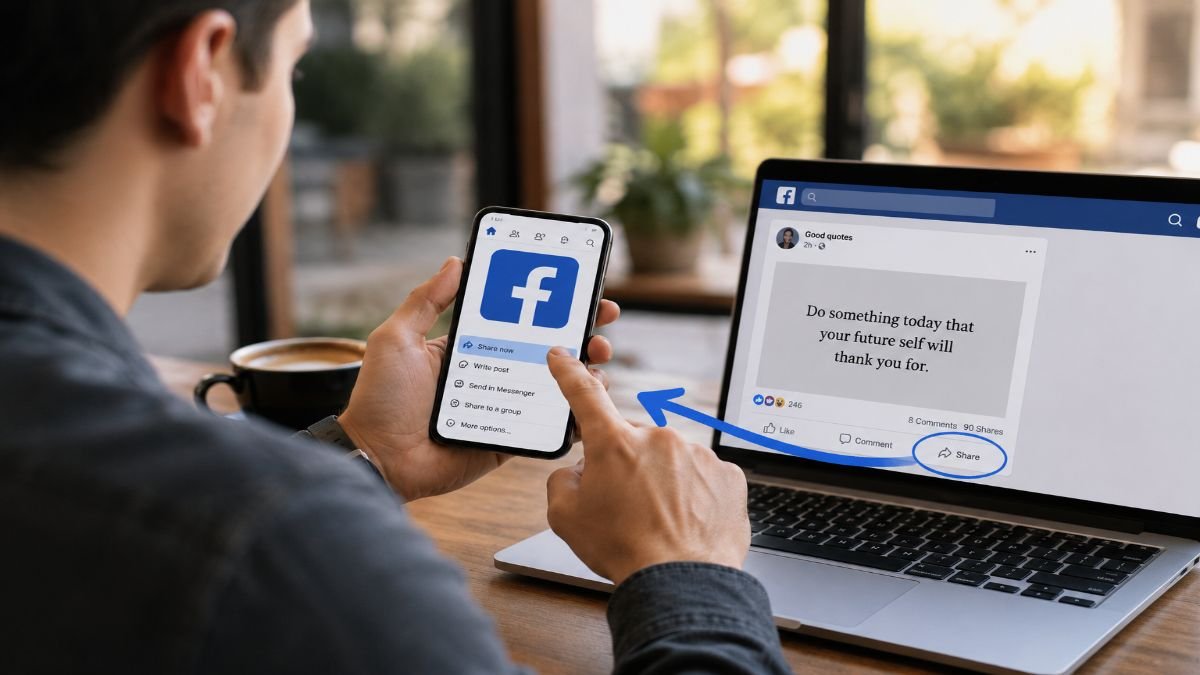
If someone tells you, I can’t share your Facebook post, the first thing to investigate is the post’s audience.
1. The Post Is Set to Friends
A common reason is that the original post was published for Friends rather than Public.
When you restrict the audience, you’re also limiting who can see the content. Facebook’s privacy controls are designed to let users decide who can see what they share.
If you want a post to reach people outside your existing Facebook friends, Public is the better setting.
2. The Post Uses a Restricted Audience
Facebook provides several audience choices depending on the type of content and account.
For example, a post may be limited to selected people rather than everyone.
If your goal is broad sharing, check the audience before publishing instead of assuming every Facebook post is automatically shareable.
3. The Post Is Inside a Private Group
A Facebook Group has its own privacy and membership rules.
A post made inside a private community shouldn’t be treated the same way as a public post on your profile or a Facebook Page.
Someone may be able to share or interact with content within the group while still being unable to make that content available to people outside the group’s audience.
This is one reason why Why can’t I share this post? doesn’t always have a single answer.
4. You’re Posting Somewhere With Different Sharing Rules
Facebook has several types of content and surfaces, including personal profiles, Pages, Groups and Reels.
Their audience and visibility controls aren’t always identical.
For example, Facebook specifically provides separate audience controls for Reels.
So if you’re trying to make a Reel, Group post, or Page post shareable, don’t assume the exact same settings will appear as they do for a standard profile post.
How to Make Future Facebook Posts Public
If you frequently want your posts to be shareable, changing every post individually can become inconvenient.
Facebook provides privacy controls that let you manage settings for future posts through Settings & privacy → Settings → Audience and visibility.
Look for the settings related to your posts and future audience.
Before changing the default audience to Public, consider what you normally post.
If your Facebook profile contains personal family photos, private conversations, or information intended only for friends, keeping a more restricted default may be safer.
You can instead choose Public for individual posts that you specifically want to distribute more widely.
How to Make a Facebook Page Post Shareable
Facebook Pages work differently from personal profiles.
Pages are designed for public communication, so posts published from a Page can generally be viewed by people who can access the Page.
Facebook also identifies Pages and public groups as public spaces in its information about public content.
If you’re managing a business, creator, organization, or community Page, make sure you’re publishing from the correct Page identity and check whether any Page or content restrictions are affecting visibility.
If a specific Page post cannot be shared, check the post itself and whether there are restrictions affecting who can view it.
Public vs. Friends: Which Should You Choose?
Choosing Public isn’t automatically the right decision for every Facebook post.
It depends on what you’re trying to accomplish.
| Audience | Best For |
| Public | Posts you want to reach beyond your friends |
| Friends | Personal updates intended mainly for people you know |
| Friends except… | Personal content that excludes selected people |
| Specific friends | Posts intended for a limited group |
| Only Me | Private notes or content you don’t want others to see |
| Custom | Situations requiring more specific privacy controls |
If your goal is to let the widest possible Facebook audience see and share a post, Public is normally the appropriate choice.
If the content is personal, think carefully before making it public.
Facebook notes that information you choose to share publicly is considered public information, so the privacy decision should be made intentionally.
How to Check Whether Your Post Is Actually Shareable
Don’t assume the setting changed correctly. Check it.
Open the post and look at the audience indicator.
If it shows Public, you’ve selected the broadest audience option for that post.
You can also ask someone you trust to check the post from their account.
Another useful check is to open the post’s options and review the audience setting again.
Remember that Facebook’s interface can change over time, so the exact location or wording of a menu may look different from screenshots published several years ago.
The important concept remains the same: check the post’s audience rather than simply looking for a Share button.
Does Making a Post Public Make Everything on Your Profile Public?
No.
Changing the audience of one post doesn’t mean that every post you’ve ever made suddenly becomes public.
Facebook provides audience controls for individual content and broader privacy settings for things such as future posts.
That’s why it’s worth checking the audience of an individual post before publishing it.
For example, you might keep your normal Facebook posts limited to friends while making one announcement, business update, or public-interest post available to everyone.
Tips for Getting More Shares
Making a post public solves the visibility part of the problem. It doesn’t guarantee that people will actually share it.
If you want more people to share a post, focus on the content itself.
Give People a Reason to Share
Useful information is easier to pass along than a vague request to share this.
For example, instead of:
Please share!
Try giving readers a reason:
Know someone who is looking for this information? Feel free to share it with them.
The goal is to make the share useful to the next person.
Make the Main Point Easy to Understand
People should understand what the post is about without reading a huge block of text.
Put the key information near the beginning.
Use Relevant Visuals
A clear photo, graphic, or video can make a post easier to understand and notice in the feed.
However, don’t add an image simply because you think every post needs one. The visual should support the message.
Avoid Excessive Engagement Bait
A post shouldn’t depend on artificial requests for likes, comments, or shares.
Instead, ask a genuine question when a conversation would actually help.
For example:
Which option would you choose?
is more useful when the post genuinely invites an opinion.
Make Sure You’re Comfortable With Public Visibility
Before selecting Public, remember that you’re deliberately making the content available to a much broader audience.
Facebook explains that publicly shared information can be visible beyond your immediate audience and may be accessible in other contexts.
Don’t make sensitive personal information public just because you want more shares.
What If Facebook Still Doesn’t Show the Share Option?
If you’ve selected Public but another person still cannot share the post, check the following:
- Confirm that the post itself is Public.
- Make sure you’re looking at the original post rather than a restricted version.
- Check whether the content was published in a private Group.
- Check whether you’re dealing with a Page, profile, Reel, or another type of Facebook content.
- Check whether Facebook is displaying a different menu or privacy option because of an account or content restriction.
- Try viewing the post from another account.
If the problem continues, consult Facebook’s current Help Center because Facebook’s interface and available settings can change.
FAQs
How do I make a FB post shareable?
Set the post’s audience to Public. When creating a new post, use the audience selector near your name and choose Public. For an existing post, open its options and look for the audience/privacy setting.
Why can’t my friends share my Facebook post?
The post may have a restricted audience, such as Friends or a custom audience. Check the post’s audience setting and change it to Public if you want broader sharing.
Can I make an old Facebook post shareable?
Yes, if Facebook gives you the option to change that post’s audience. Open the post options, find the audience/privacy setting, and select Public when available.
Can I make only one Facebook post public?
Yes. You can choose the audience for an individual post without necessarily changing the audience for all of your future posts.
Does Public mean anyone can see my Facebook post?
Public is Facebook’s broadest audience option for a normal post. Facebook describes public information as information you choose to share publicly, including when you select Public in the audience selector.
Why does my Facebook post have no Share button?
The most likely place to start is the post’s audience and privacy settings. Also check whether the post is inside a private group or is another type of Facebook content with different sharing rules.
Can I make a Facebook Group post shareable?
It depends on the group’s privacy and the specific post. Public groups and private groups don’t provide the same level of visibility, so a Group post shouldn’t be treated exactly like a public profile or Page post.
Is it safe to make a Facebook post public?
It depends on the content. Public posts can reach a much wider audience, so avoid publishing sensitive personal information simply to increase sharing.
Final Takeaway
If you’re wondering how to make a FB post shareable, start with one setting: the audience.
For a standard Facebook profile post that you want people to share broadly, choose Public when publishing or change the existing post’s audience to Public when Facebook allows it.
If the Share option is still missing, don’t immediately assume Facebook is broken. Check the post’s privacy setting, where it was published, and what type of Facebook content you’re dealing with.
Most importantly, remember that shareable and worth sharing are two different things. Public visibility makes wider distribution possible; useful, interesting, timely content gives people a reason to actually share it.